


IMReport module (OC 3) - Advanced reporting of sales and orders for OpenCart
OpenCart provides analytics, but it is implemented in such a basic form that it is not enough even for a small store.
However, you can find solutions to many questions using this IMReport module - Advanced sales and order reporting (Report "Product in circulation", "Customer group", "Orders by region (delivery)", "Manufacturers (volume of products)", and so on).
IMPORTANT! The IMReport module displays the purchase price (cost) and revenue (calculated field) only if the IMStock module of the corresponding version is available.
Advantages
1. Normal calculation of the amount. In the standard analogue of "Report on purchased goods", the amount is calculated incorrectly.
2. Support for the purchase price (cost) of the IMStock module.
3. Ability to export data to CSV files.
4. Powerful advanced filters (customers, customer groups, categories, manufacturers, etc.)
5. Each of the reports is tailored to solve the most important tasks, so you don't need to "dig into configurations and invent something" (and the customer report has as many as 3 unique modes). In simple words - a tool for people. Open and use.
6. Filtering and paging are performed on the client side of JS. Filter the data once and “twist and turn it as you like” (this approach is more profitable in practice than server-side filtering, sorting and paging, since the data is transmitted once, and JS performs filtering and paging very quickly; in addition, in the case of a conventional server-side approach, filtering and paging blocks the main database tables, which, with large amounts of data, will cause unnecessary slowdowns for your online store customers).
7. Ajax data loading - no need to reload the form every time. Everything is done quickly and conveniently.
8. And many other "flavors".
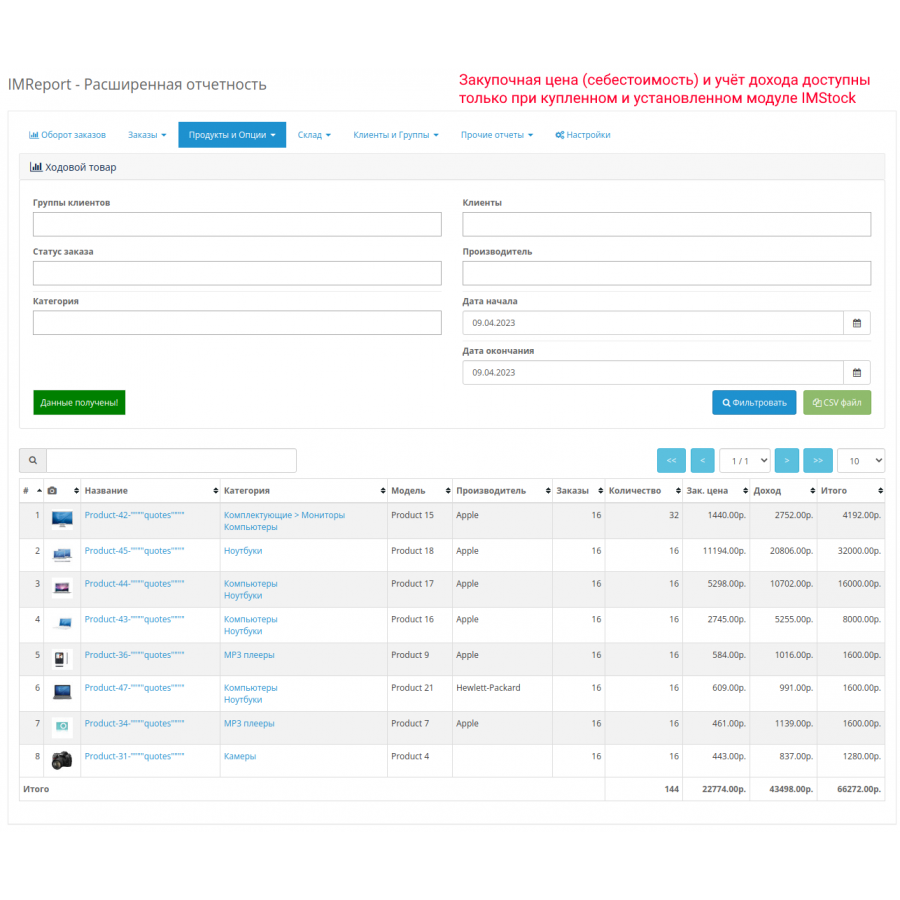
Report "Goods in Motion"
As the name suggests, this report allows you to analyze all sold products in terms of their popularity. A very convenient report for those who need the strengths and weaknesses of the entire turnover.
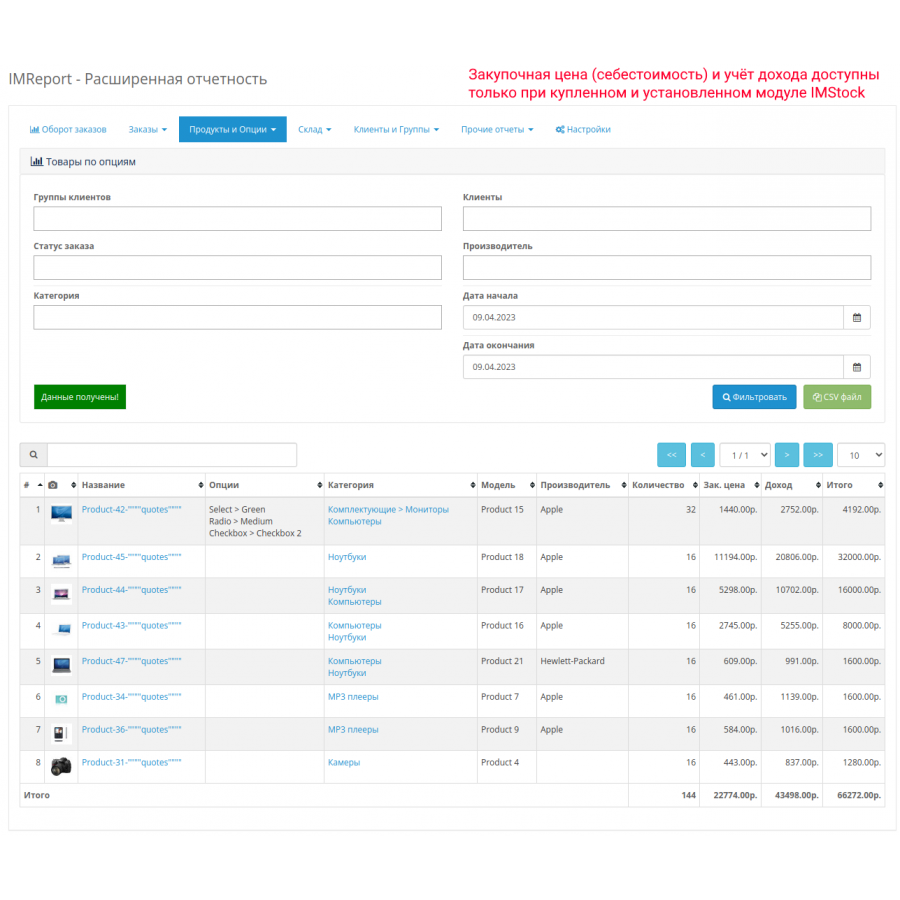
Report "Items from options"
This is an extended version of the "Current Product" report, where all product purchases are broken down into its configuration in options. In other words, you can find out how many computers were in circulation, computers with added 8GB of RAM, computers with non-standard cases, computers with memory and cases, and so on.
This report is especially useful for those whose options have a strong impact on product sales. For example, the textile industry (e.g. clothing), technology (e.g. computers), food products (e.g.
pizza shop) and so on.
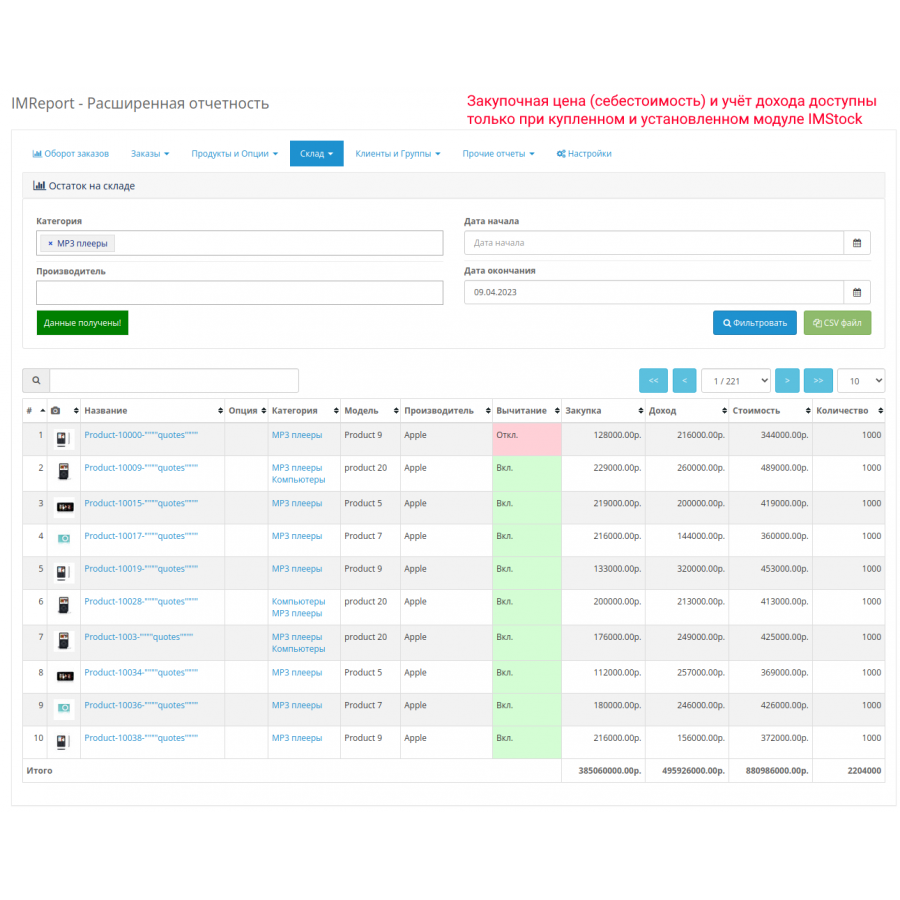
Report "Stock Balance"
This report allows you to find out the stock balances for the specified category, manufacturers, and product addition date filter. The special feature is that the report presents the balance both for the product itself and for its individual options.
This report is especially useful for those who have an online store connected to a physical store. Or the online store is an intermediary between various suppliers and the end buyer.
Keep in mind that the browser's capabilities are not as extensive as Excel or OpenCalc. It is quite difficult for a browser to display thousands of items. Therefore, if you need to analyze a fairly large volume of goods, for example, all products with 20,000 items (including options), then it is better to use the CSV file export, as Excel and OpenCalc easily cope with such loads.
Please note that price amounts are displayed only for the product itself (applies to both the product price and the cost price). For options, price amounts are 0.
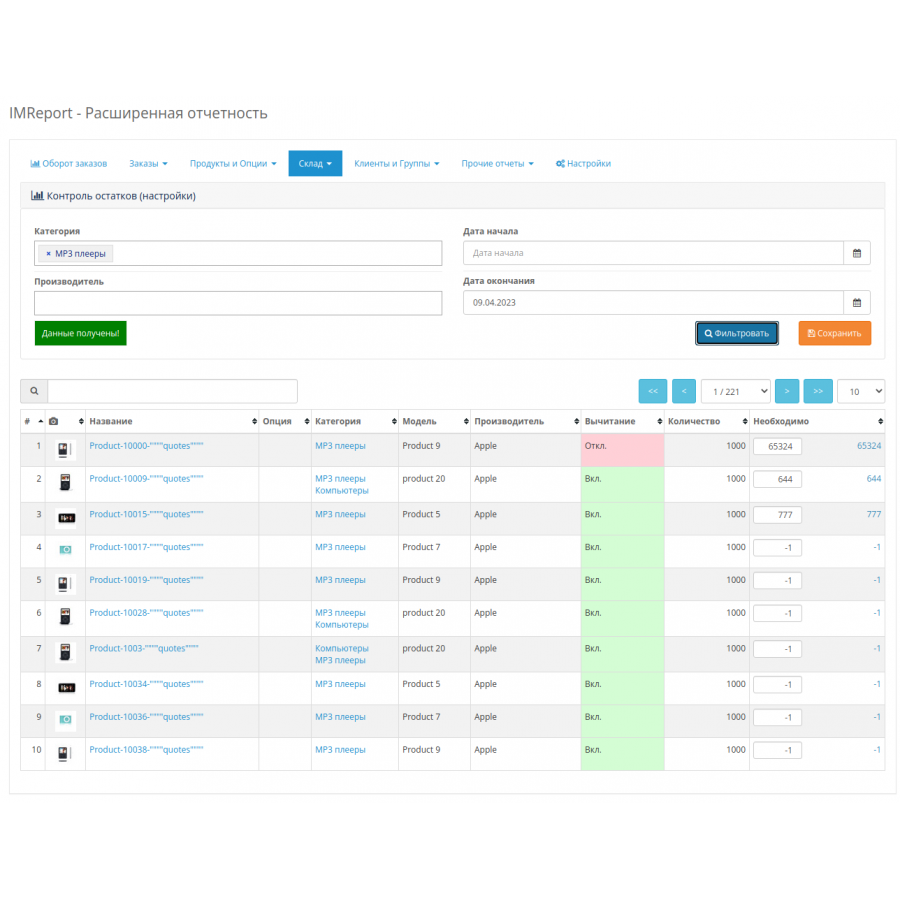
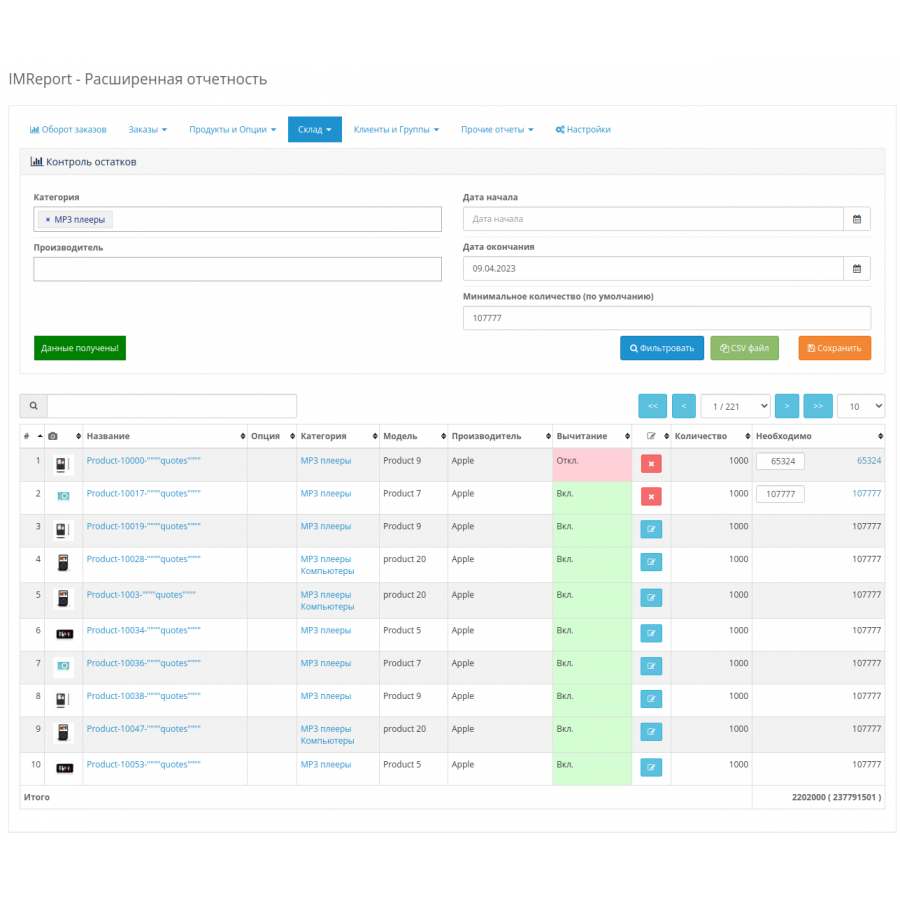
"Remains Control" report
This report allows you to quickly find out which products are out of stock and need to be ordered from suppliers. The report is used in two stages.
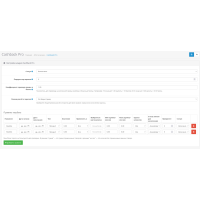
First. On the "Balance Control (Settings)" tab, you need to set the minimum balances for products and their options. Please note that if the value is negative, then such a product will be displayed according to the report settings. If a specific value of the minimum required balance is specified for a product or product option, such a product or option will be displayed according to whether there is enough of it in stock or not. If you want to hide a product or option from the report at all, just specify the value 0 (there cannot be less than zero balances).
Second. After you have specified the settings, you can use the report. For all products or options that have negative or not specified balances, the filter value "Minimum quantity (default)" is applied. So if you have most of the products or their options that should be presented in the same quantity, it is not necessary to specify them.
Note: To simplify the process, the initial value of the minimum quantity is specified in the localization file. The parameter "default_min_need_quantity".
Note: It is possible to quickly correct values directly from the report.
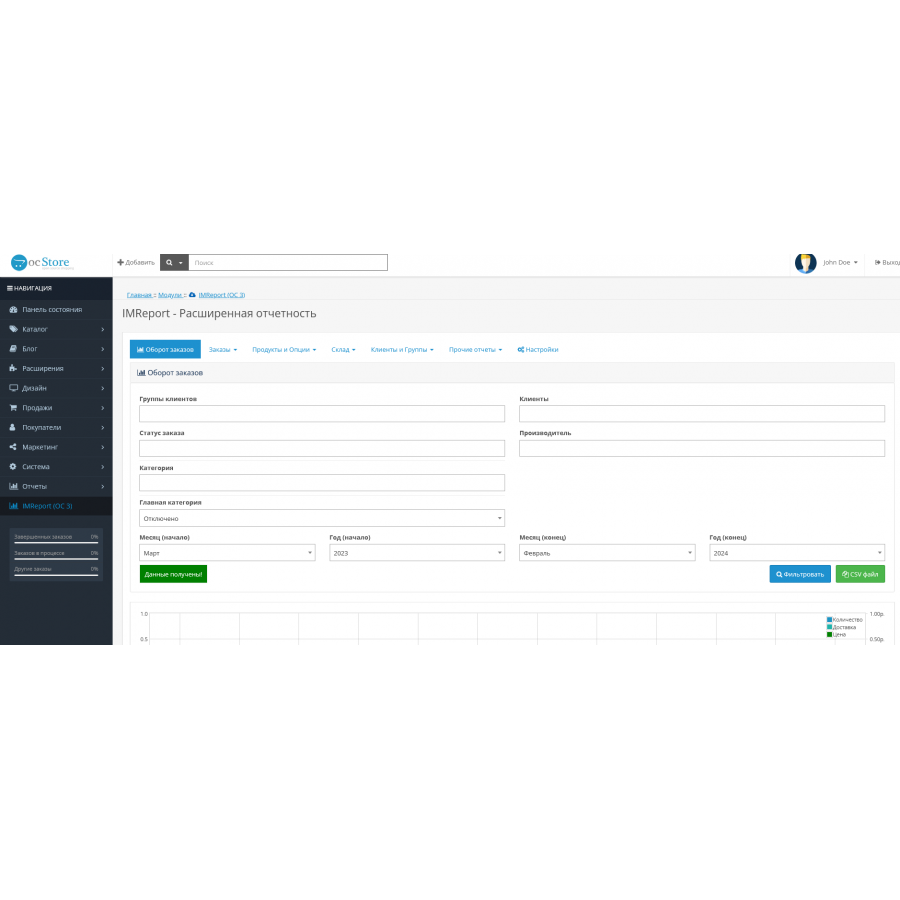
Order Turnover Report
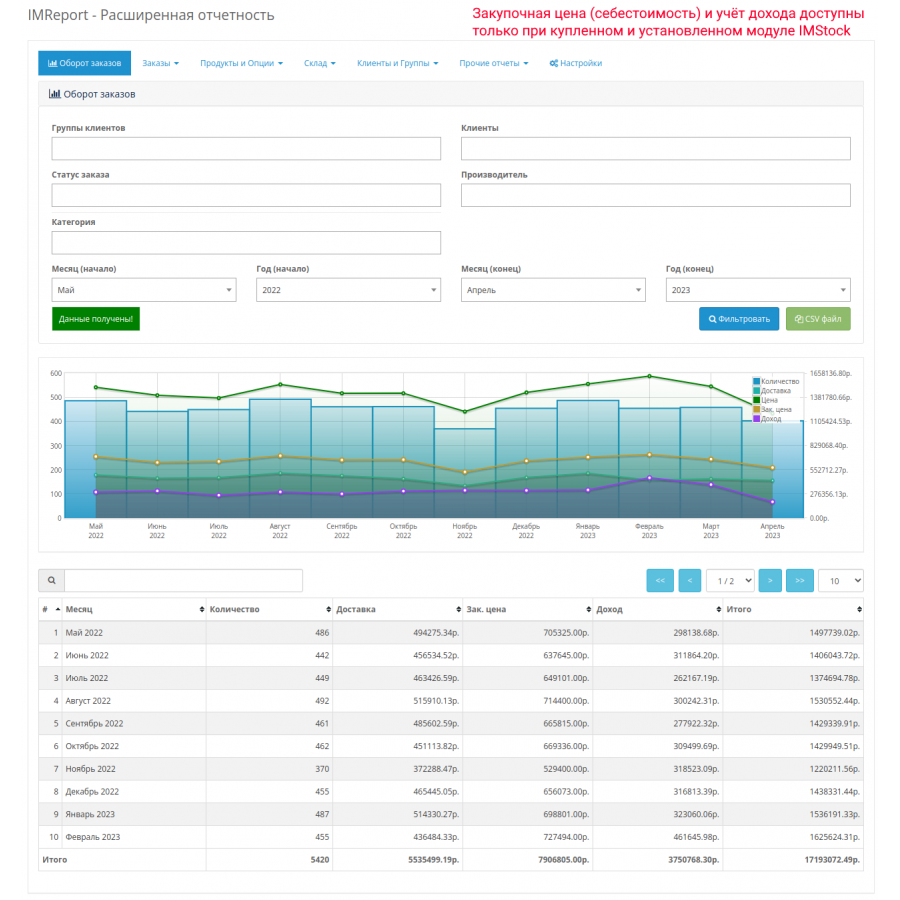
This report allows you to get a monthly report for the order period. To put it a little simpler, for the selected period, orders with the specified filters are grouped by month, and their quantity and total amount are calculated.
It is also possible to search only for orders that have products from the specified categories by the specified manufacturers.
Daily Order Turnover Report
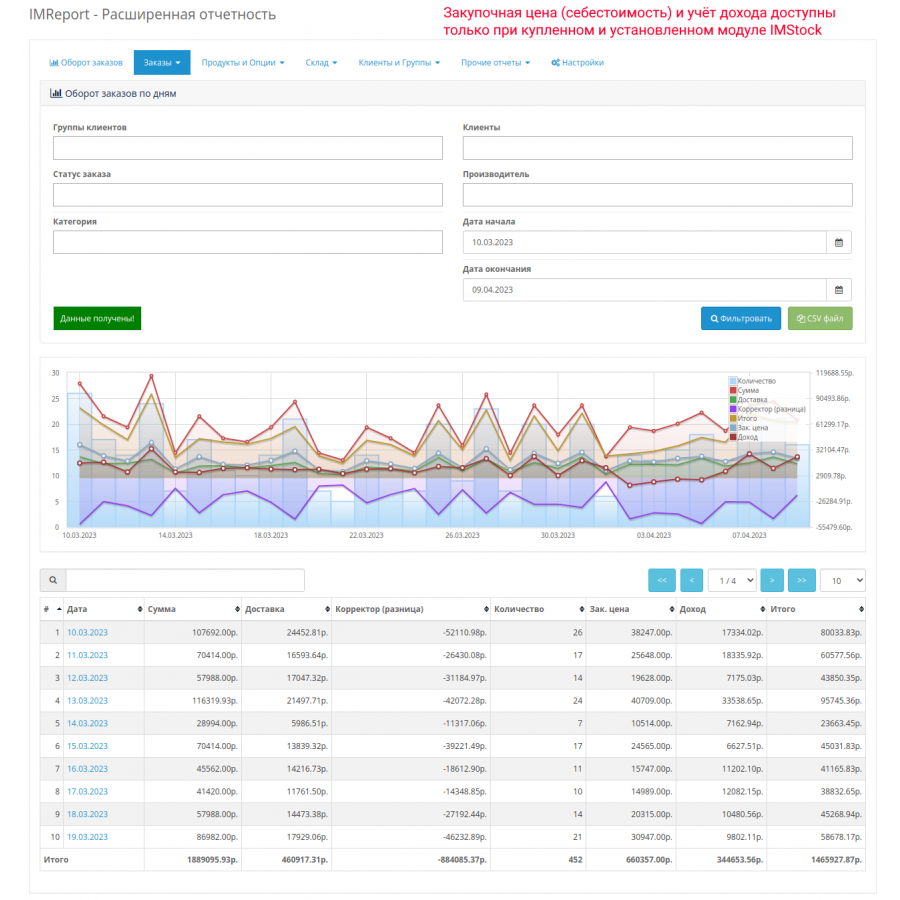
This report allows you to get a report for the order period. To put it a little simpler, for the selected period, orders with the specified filters are grouped by day, while their quantity, delivery, amount of goods (from order_total), total amount and corrector (discounts, etc.; total amount minus amount of goods and delivery) are calculated.
It is also possible to search only for orders that have products from the specified categories by the specified manufacturers.
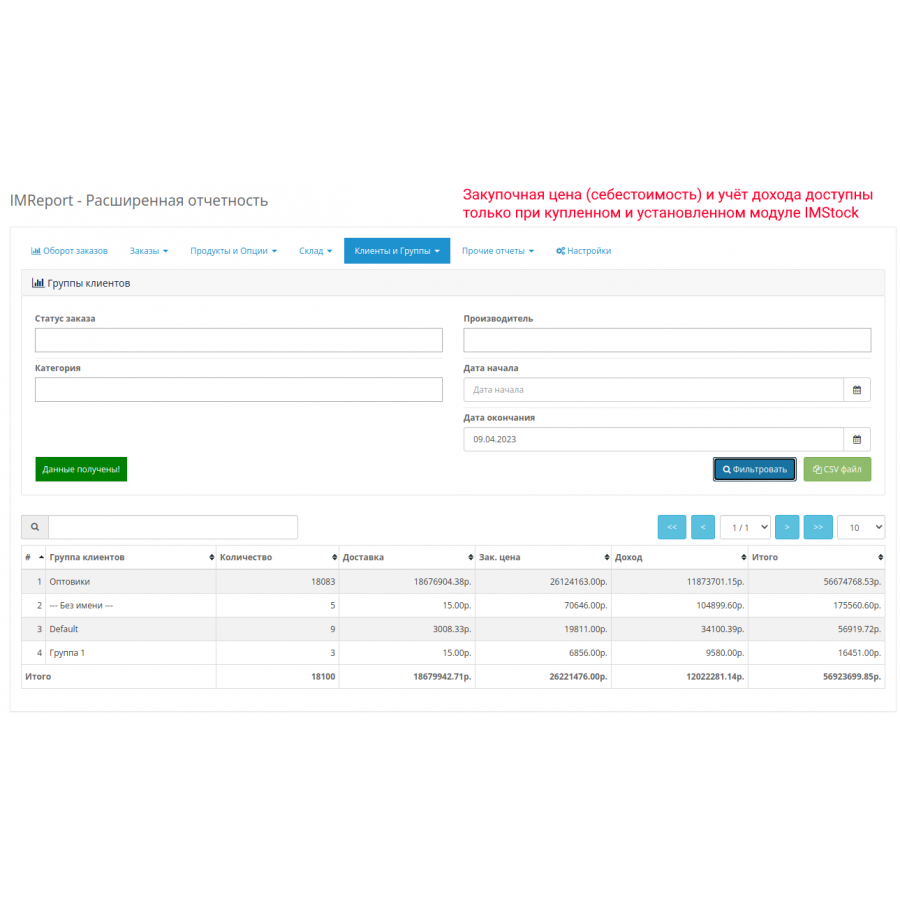
Customer Group Report
This report allows you to get data on customer groups for a period, taking into account the specifics of the goods purchased and their categories. Please note that in this report the amount also includes the delivery amount. To put it a little simpler, the number of orders and the amount, taking into account filters, are displayed for each group.
Report "Orders by region (delivery)"
This report allows you to find out the volume of orders for each country and region for the period, taking into account the specifics of the products and their categories purchased. Please note that in this report the amount also includes the delivery amount. To put it a little simpler, for each Country/Region pair (delivery part), the number of orders and the amount are displayed, taking into account filters.
Report "Orders (customers, delivery, payment)"
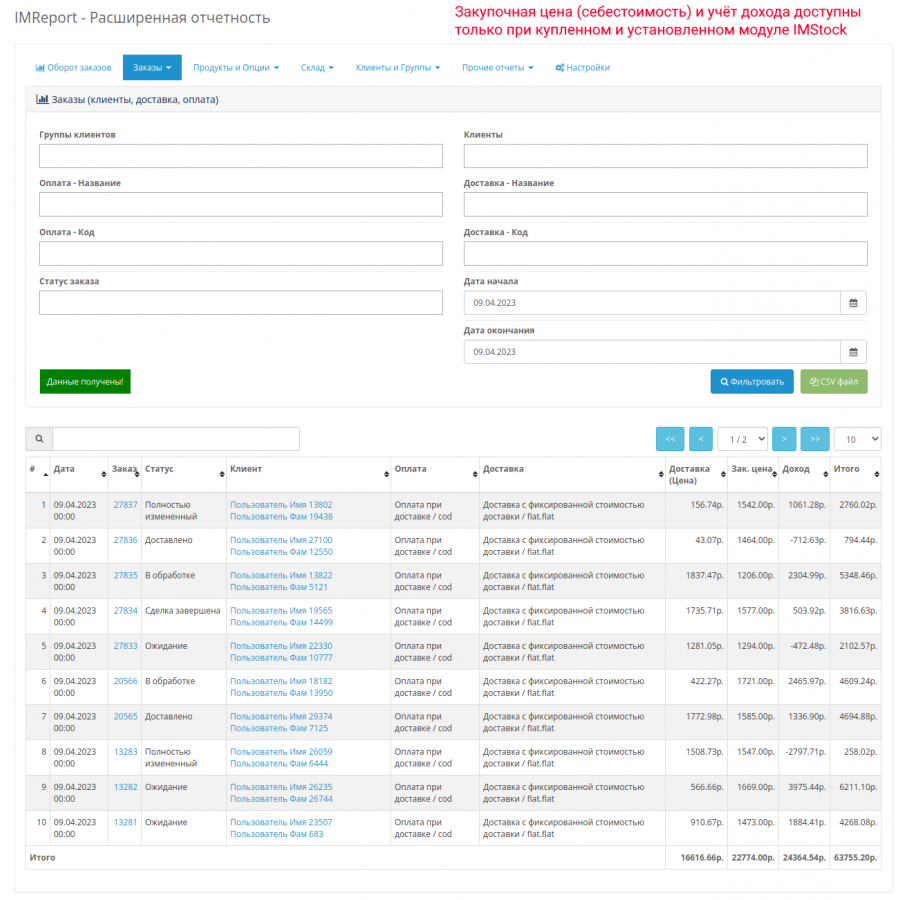
This report allows you to filter all customer orders and their used shipping and payment methods with the ability to filter by method names and codes. This report is especially useful in cases where you need to analyze the best payment and shipping methods for certain customers. For example, to provide better conditions for regular customers.
Delivery report
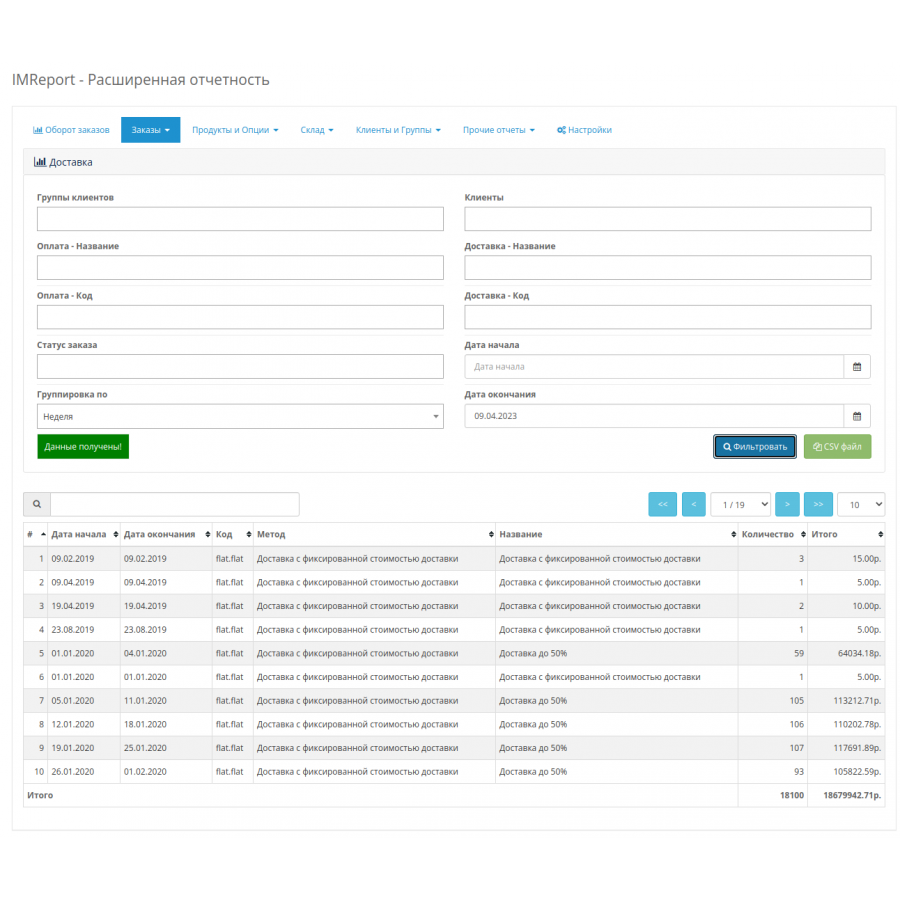
This report is an extended version of the standard Sales / Shipping report. It allows you to see the popularity of different shipping methods depending on filters (payments, shipping, customers), as well as the total volume.
Unlike the standard report, grouping is done by time, code, method, and delivery title.
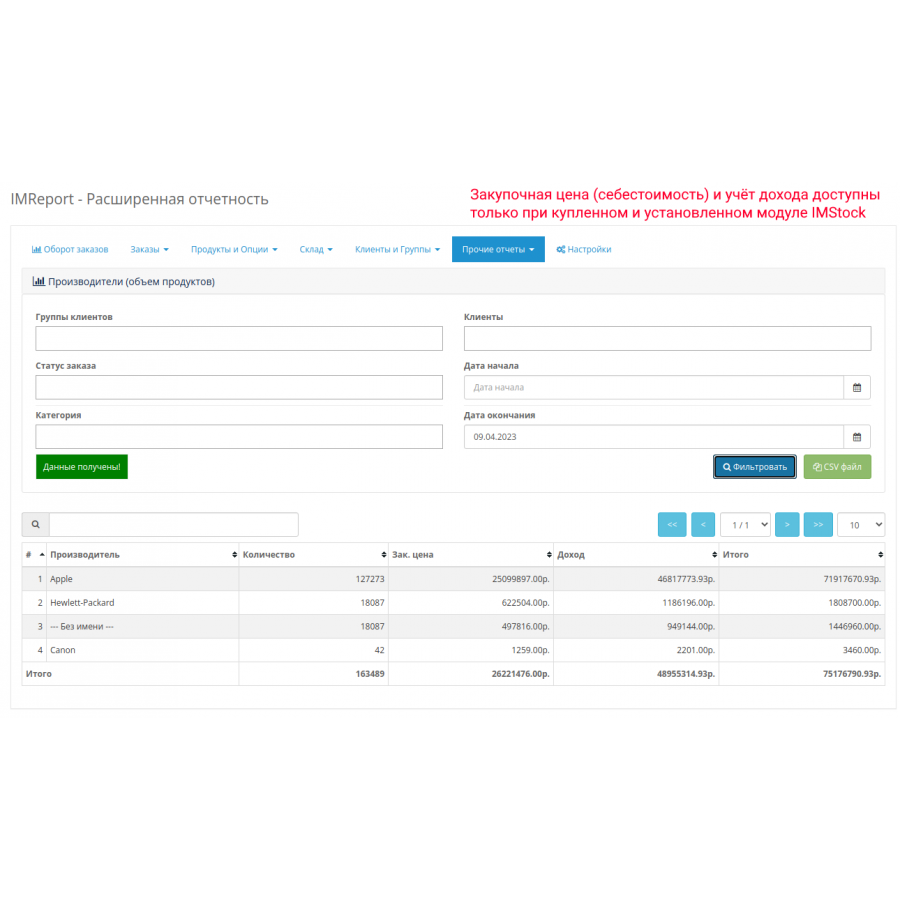
Report "Manufacturers (volume of products)"
This report allows you to find out the volume of products sold for each Manufacturer for the period, taking into account the specifics of the products and their categories purchased. Please note that this report sums up the products of the category themselves. To put it a little simpler, for each Manufacturer the number of products and the amount are displayed, taking into account filters.
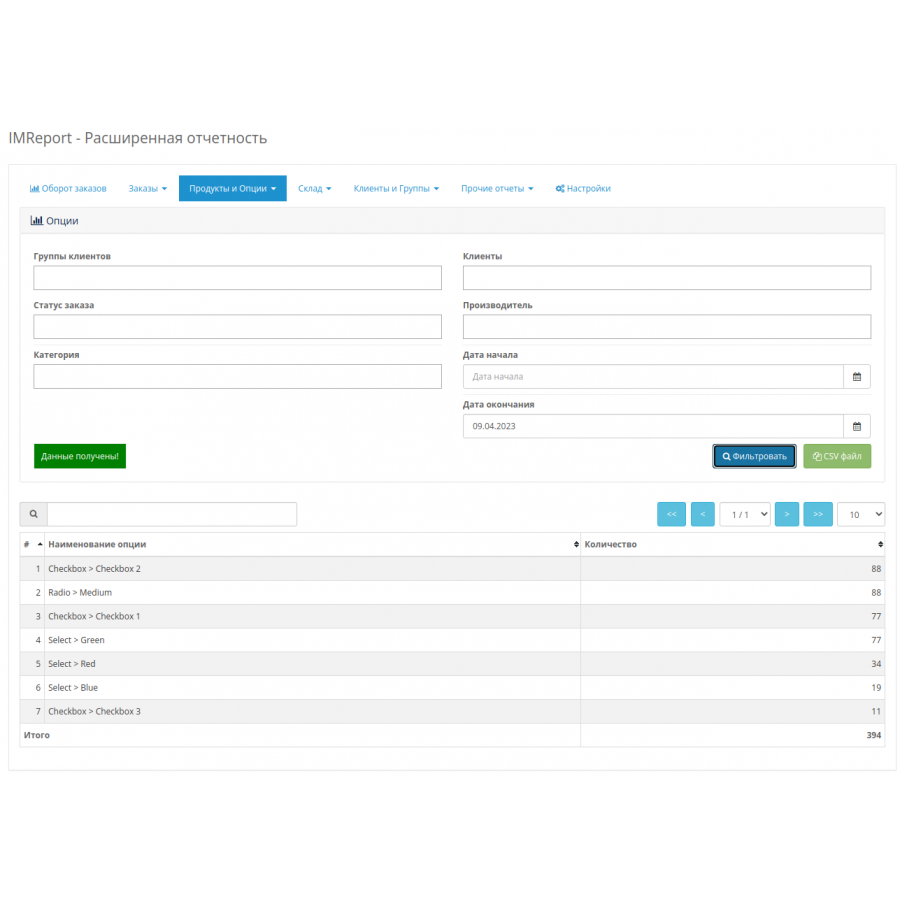
Options report
This report allows you to find out the popularity of options in your orders over a certain period of time, taking into account the filter by category and manufacturers. In other words, now you can find out the most popular clothing sizes or computer modifications.
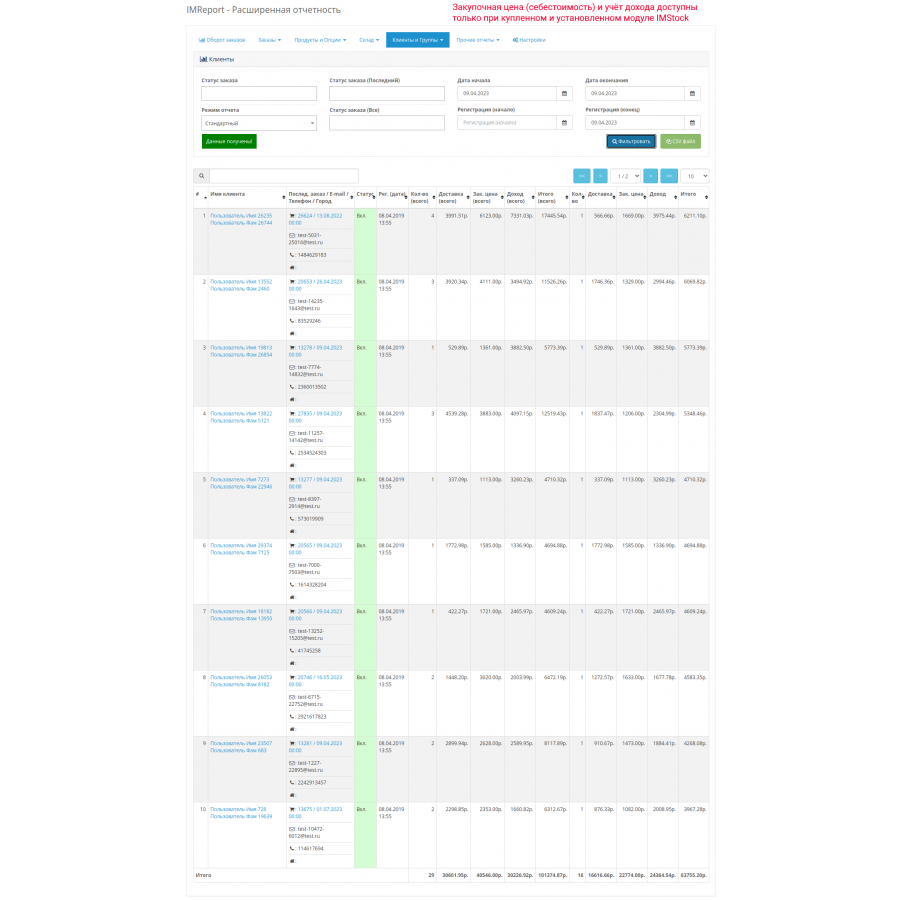
"Clients" report
This is a comprehensive report that allows you to track your customers' orders. There are three types of reports in total:
First. Standard . This report displays data about customers and the number of their orders for the specified period. It contains a little more information than the standard customer report. However, an important feature is the ability to not only view, but also sort, which is quite important when you have more than one customer.
Second. Search only registered (without purchases) . If you need to track customers who have gone half way, that is, registered, but have not bought anything, then this report will display them. The peculiarity of this mode is that the date filter is applied to the date of registration.
Third. Search for lost customers . The essence of the report follows from its name. The report displays a list of customers who have ever purchased from your store, but have not purchased anything during the specified period. With its help, you can, for example, find out which customers have not purchased anything in six months (day/month, and so on) or find out which customers have not purchased anything in the past six months due to a decrease in demand (for example, in order to understand how dependent the product chain is on certain conditions).
Note: The Last Order fields are informative, so their status filters do not affect the presence of users in the results. So if you need to exclude all returns from analytics when searching for lost customers, for example, and find out only the last completed order and their total number, then you can do this.
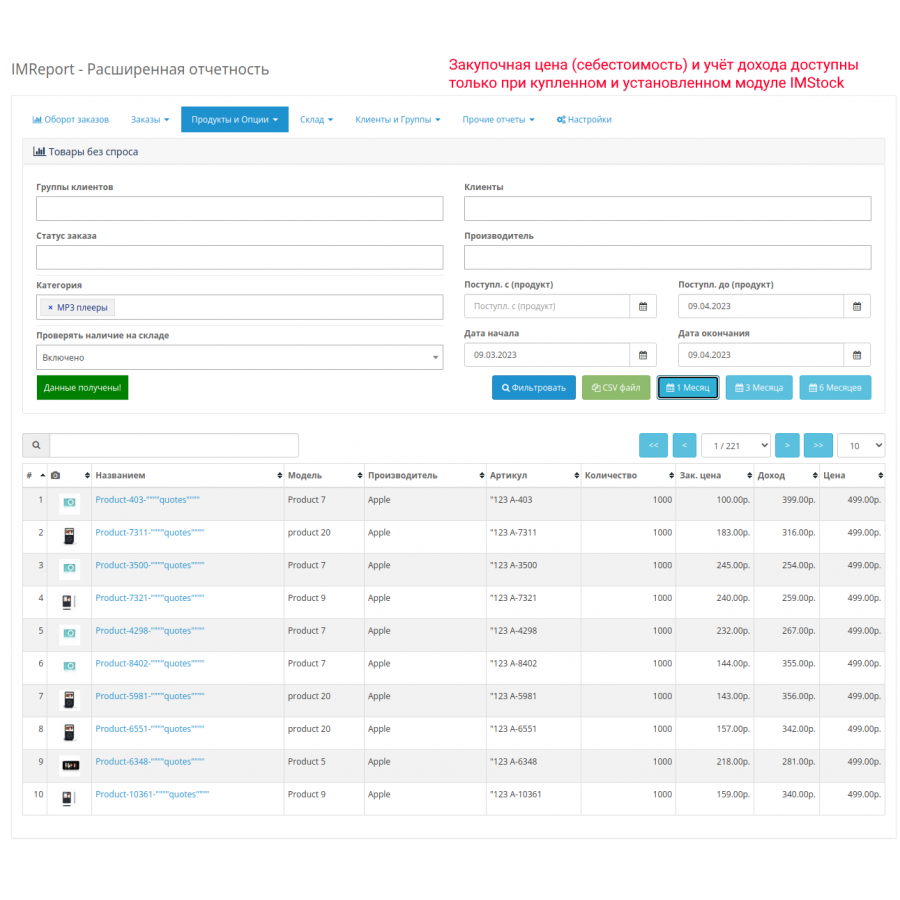
Report "Goods without demand"
This report allows you to find out which products are not in demand, but only occupy or occupied space in the warehouse. The report supports many filters, including the ability to filter products that are currently out of stock.
Please note that with a large range of data, retrieving data may take time.
Image display settings
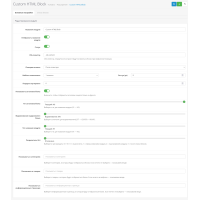
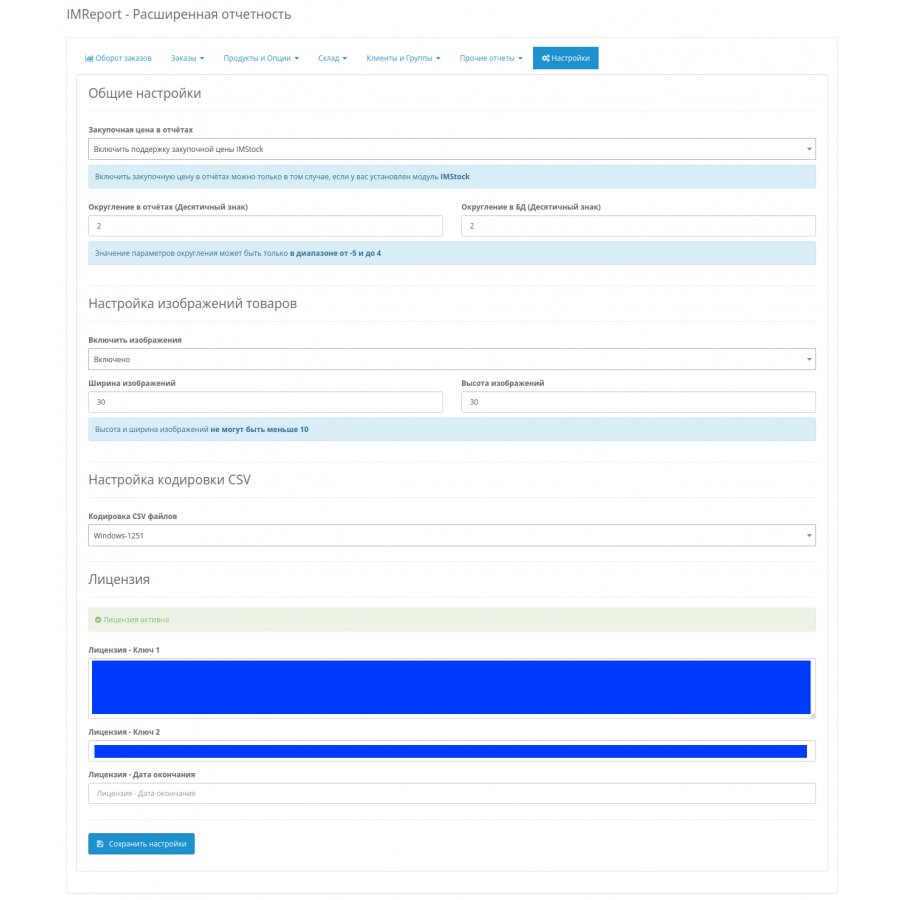
In some cases, reports with products may require a small main image (especially useful when printing). Display is enabled in the "Settings" tab. It is also possible to specify the dimensions in height and width of the resulting images.
Consider:
1. Settings are used for all reports where products are displayed
2. The main display of the product is displayed (regardless of options)
3. Image links only get into the CSV file if display is enabled
4. Additional time is required to create the necessary images (may be significant for a large number of different products)
5. The size (width and height) of images cannot be less than 10.
Rounding settings
The module has two rounding parameters:
1. Rounding in the database (Decimal point) . This parameter is used when selecting from the database. For example, if the product had a price of 123.1234 and the parameter was 2, then the module would round to 123.12 during calculations.
2. Report Rounding (Decimal) . This parameter is used to generate displayed reports. For example, if Rounding in the database is set to 3, Rounding in reports is set to 2, and the price of the product was 123.1234, then the price will first be rounded to 123.123, and then in the reports it will be rounded to 123.12.
The value of the rounding parameters can only be in the range -5 to 4.
Important! Please note that the accuracy of the displayed data depends on the accuracy of OpenCart's calculations and rounding. And OpenCart does not round values when placing an order, but simply stores them with an accuracy of up to 4 decimal places.
For example, if the prices of two or more products are specified with an accuracy of 4 digits (say, 123.1234 and 3245.3455), and 2 decimal places are specified in the currency settings, then you can create an order in which the sum of the products will differ by 0.01. Since the products are first summed, and then only rounded during output. By the way, the products themselves are also summed.
However, if your accuracy in product prices and your output in currencies are the same, then you are unlikely to encounter this problem (and, in principle, the problem is rare, but sensitive at high speeds).
Setting the encoding of a CSV file
The encoding settings are located in the "Settings" tab. Important! By default, the site encoding is considered to be UTF-8.
There are three options for configuring the output:
1. Windows-1251. Conversion from UTF-8 to Windows-1251 is taking place.
2. UTF-8 (BOM). In this case, a special marker is added to the text, which contains the file in UTF-8 encoding.
3. Without encoding. This is for those cases when either there is no iconv or a different encoding is used, which is why it is better to save the file to your computer without any encoding conversion (for example, OpenOffice allows you to choose the encoding from which to open the file, which is very convenient in cases with non-standard encodings).
Configuration file
The special configuration file for the IMReport module is located here: "system/IMReport/IMReportConfig.ini" (not to be confused with IMReportConfig.php).
This file contains various variables for more flexible configuration of the module.
Current variables:
Block [dev]
; disable auto-download of reports (1 - enabled, 0 - disabled)
disable_autoload = 0
; sql query log (1 - enabled, 0 - disabled) (stored in system/IMReport/Log/)
enable_sql_log = 0
; sql query log - display queries separately (1 - enabled, 0 - disabled)
enable_sql_log_show_query_at_start = 0
Block [user]
; number of users displayed in the filter
limit_cust = 10
; number of user groups displayed in the filter
limit_cust_group = 10
; delay before ajax request in filters
ajax_filter_delay = 500;
; the number of rows displayed in the table by default (if the number does not match the available set, it is added)
table_default_num_rows_displayed = 10
; number of months in the "Order Turnover" report
report_order_sales_months = 12
; number of days in the "Order turnover by day" report (+1 current day)
report_order_sales_by_day_num = 30
Optimization tips
To generate reports faster, you need to make sure that you have indexes created in your database for the order_option (order_product_id) and order_total (order_id, code), order (customer_id), and order (customer_group_id) tables.
If you don't know how to do this in the phpMyAdmin hosting panel, I recommend using the IMDBOptimizer(OC 3) module.
Features and requirements
1. Filter by lists with multi-selection. If several items are selected and one of them is "All items", this item is not accepted and filtering is performed by other selected items. If you need to filter by all items, either select only one of these items, or deselect all items altogether.
2. By default, the site encoding is considered to be UTF-8.
3. It is necessary that the iconv module is connected (usually it is on hosting), otherwise the CSV file can only be output without encoding.
4. The CSV file uses a semicolon as a separator
5. In the "Daily Order Turnover" report, you cannot use empty dates. If the date is set incorrectly, the current server date is displayed instead. If the start date of the period exceeds the end date, the start date is considered the end date.
6. Amounts are calculated in the base unit of the OpenCart engine. Please note that currencies are not the engine's, as editing currencies (for example, changing the default currency) does not result in recalculation of orders.
7. You need to set mbstring.func_overload 0 in your site settings. If you don't know how to do this, check with your hosting provider. In most cases, the default value is 0 (you, as a client, don't need to do anything), but some hosting providers set the value to 2. This is important if you have problems with keys and module activation.
8. Please note that the accuracy of the output data depends on the accuracy of OpenCart's calculations and rounding. See the rounding section for more details.
9. Keep in mind that reports that count products use prices from the order line. For example, if there was a 10% discount for the entire order, this part is not taken into account at all, since it cannot be broken down into individual products (maybe it's a discount for a specific product, or maybe a discount for shipping, etc.).
Installation
1. Unzip and copy the "admin" and "system" directories to the root of the site. Don't worry, no files will be replaced.
2. Open the admin panel and install/reinstall the module
3. Open the Extensions Installer and download the file "imreport_menu_fast_link.ocmod.zip". If you are reinstalling the module (listed versions), you must remove previous modifiers before reinstalling.
4. Update modifiers
5. Open the module (edit) in the admin and use reporting
License and usage
Made for OpenCart 3.x ocStore 3.x versions
By purchasing the module, you automatically agree to the license text.
The module has an "as is" distribution principle.
There are no reviews for this product, be the first to leave your review.
No questions about this product, be the first and ask your question.
Module installation instructions:
- Before performing any actions related to installing an add-on in Opencart, we recommend creating a backup copy of all site files and the store database ;
- Install the localcopy fix (if you don't have it installed yet)
- Download the module file for the desired Opencart version from our website ( Follow the installation instructions if there are any in the module archive );
- Then go to the "Installing add-ons/extensions" section and click on the " Download " button;
- Select the downloaded file and wait for the module to be fully installed and for the text "Application installed successfully" to appear;
- After that, go to " Application Manager " and update the modifiers by clicking the " Update " button;
- After these actions, you need to add the rights to view and manage the module in the " User Groups " section for the administrator or other users you select by clicking " Select All ".