

Module Needless Image - Removal of images that are not used for Opencart
Needles Image - Removal of unused images occurs automatically.
Have you accumulated so many images that you need to change your hosting plan? Are all images used? Perhaps a large part of them was needed once, but now it is no longer necessary?
The Delete Unused Images module allows you to check and delete all images that are no longer needed, including their cached versions.
The following images are considered:
- Images of products, including additional ones
- category images
- Image of manufacturers
- Image of banners
- Images from downloads
- Images from orders
- Image of options (if available)
- Image from settings
- Images of certificates
If the link to the image was added manually, for example, in the html description of the product, then such images are not taken into account. Be careful what you delete and keep the best image used in the product description text in a separate directory/folder.
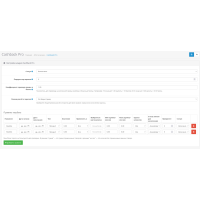
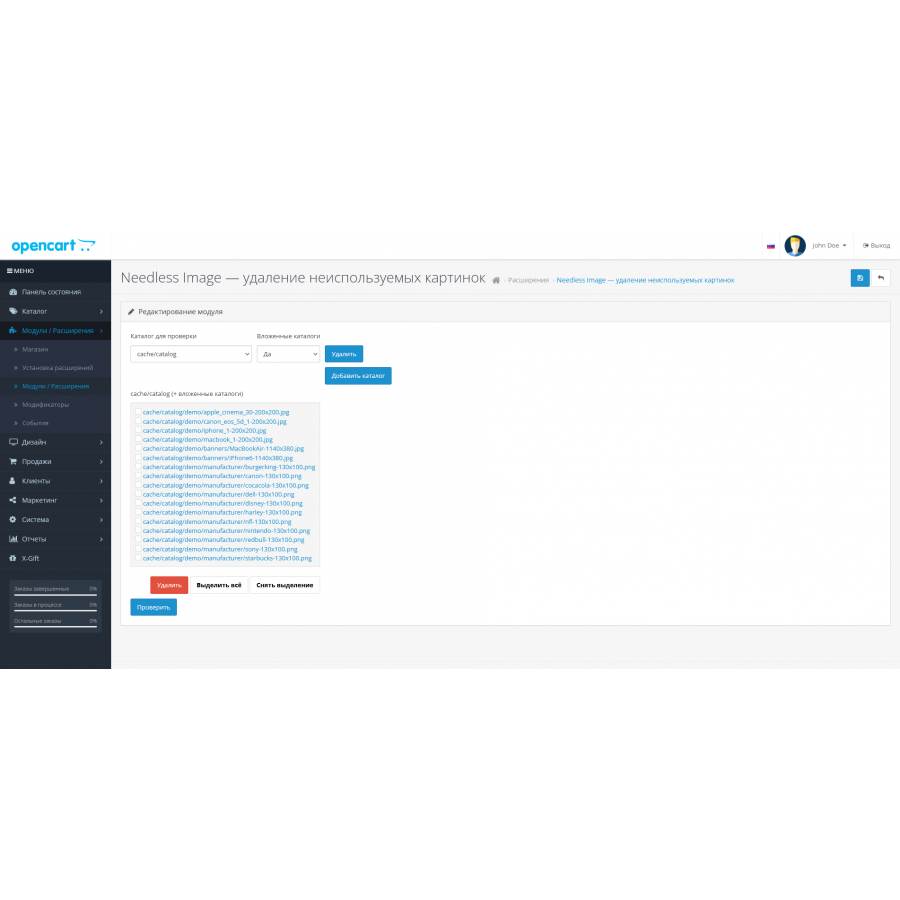
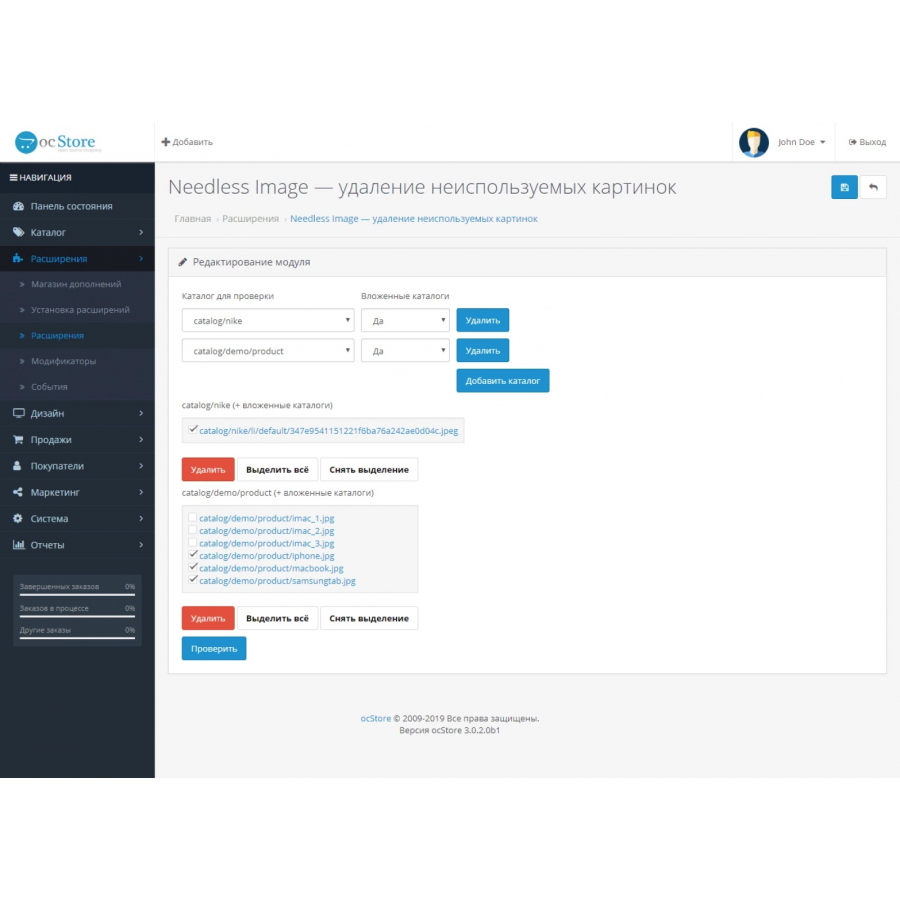
After installing the module, go to its settings, select a directory to check, click check, and here is a list of all redundant images.
It is recommended that you back up your image files before deleting images.
The author of the module is not responsible for the removal of images. Does not accept claims related to loss of images.
There are no reviews for this product, be the first to leave your review.
No questions about this product, be the first and ask your question.
Module installation instructions:
- Before performing any actions related to installing an add-on in Opencart, we recommend creating a backup copy of all site files and the store database ;
- Install the localcopy fix (if you don't have it installed yet)
- Download the module file for the desired Opencart version from our website ( Follow the installation instructions if there are any in the module archive );
- Then go to the "Installing add-ons/extensions" section and click on the " Download " button;
- Select the downloaded file and wait for the module to be fully installed and for the text "Application installed successfully" to appear;
- After that, go to " Application Manager " and update the modifiers by clicking the " Update " button;
- After these actions, you need to add the rights to view and manage the module in the " User Groups " section for the administrator or other users you select by clicking " Select All ".