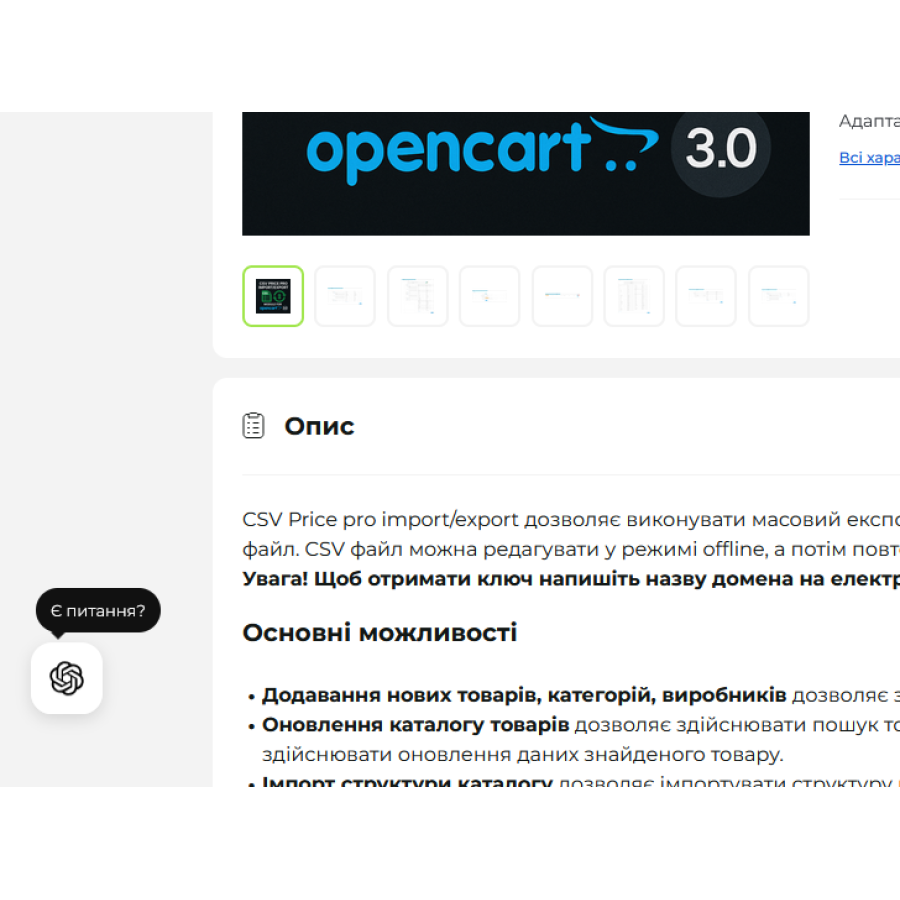

Ask a question about a product via ChatGPT for OpenCart 2.3 and 3.x
The "Ask a question about a product via ChatGPT" module is a convenient tool for online stores on OpenCart that allows customers to quickly ask questions about a product via ChatGPT.
When clicking on the button, the user automatically goes to a chat with an already formed request containing information about the product. The buyer can then interact with ChatGPT and receive answers.
Main features
- "Ask a question" button right on the product page
- Automatic transfer of product data to the request (name, description, etc.)
- User transition to ChatGPT chat with ready-made prompt
- OpenCart 2.3 and 3.x support
- Easy installation without complex API integration
How it works
1. The user opens the product in your store
2. Clicks the "Ask a question" button
3. You will be redirected to ChatGPT with a request already prepared.
4. The user receives a response directly in the chat
Benefits for the store
- Improving user experience
- Helping the customer make a purchasing decision
- Modern functionality without complicated settings
- Does not require API keys or additional costs
Importantly
The module is not a direct API integration with ChatGPT.
He opens a chat with an already formed request and transferred product data.
This allows you to quickly implement modern functionality without complex technical integration.
 ai-opencart2x_3x.zip
There are no reviews for this product, be the first to leave your review.
No questions about this product, be the first and ask your question.
Module installation instructions:
- Before performing any actions related to installing an add-on in Opencart, we recommend creating a backup copy of all site files and the store database ;
- Install the localcopy fix (if you don't have it installed yet)
- Download the module file for the desired Opencart version from our website ( Follow the installation instructions if there are any in the module archive );
- Then go to the "Installing add-ons/extensions" section and click on the " Download " button;
- Select the downloaded file and wait for the module to be fully installed and for the text "Application installed successfully" to appear;
- After that, go to " Application Manager " and update the modifiers by clicking the " Update " button;
- After these actions, you need to add the rights to view and manage the module in the " User Groups " section for the administrator or other users you select by clicking " Select All ".