

Smart Popup — pop-ups and cookie notifications in one module
Smart Popup is a universal module for OpenCart that combines two tools: creating pop-ups with arbitrary content and a cookie consent notification system.
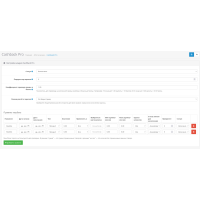
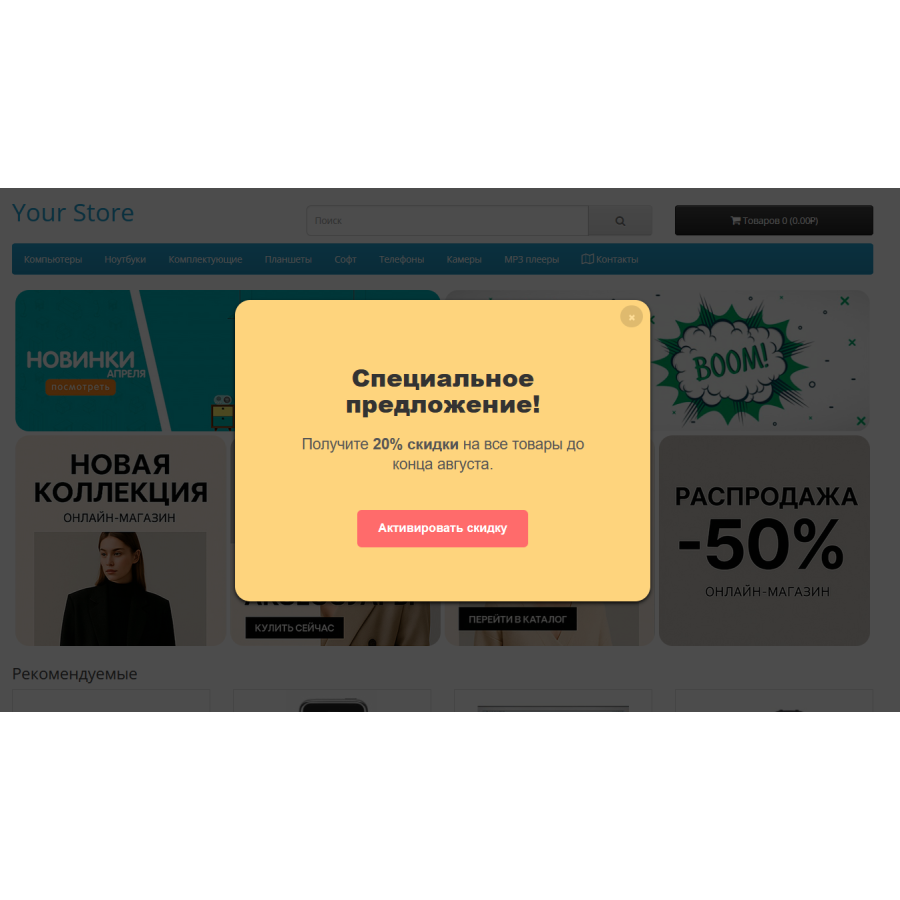
The module allows you to flexibly control the display of pop-ups: you can set the text, appearance, behavior, and display schedule. All this is configured through a convenient visual editor without the need to edit the code.
Module capabilities
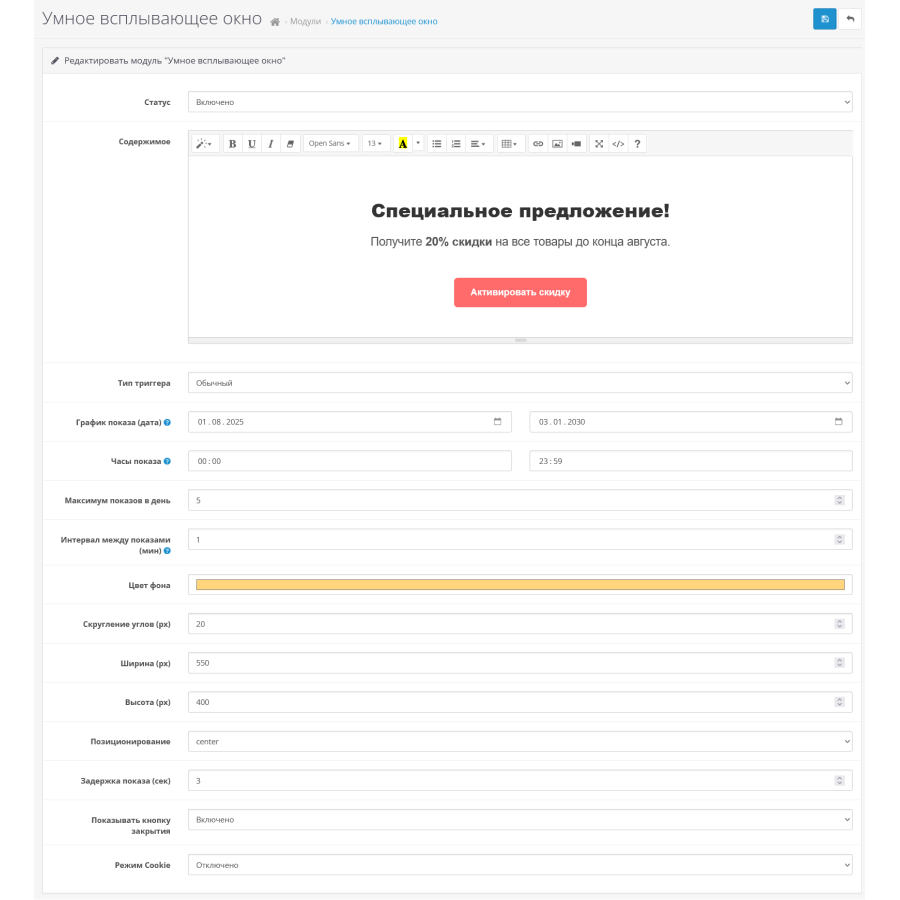
Content management through a visual editor
Scheduled viewing - specify start and end date and time
Flexible triggers :
while loading the page
when scrolling (scroll)
when trying to leave the page (exit-intent for PC)
Interval between shows
Limiting the number of impressions per day
Appearance settings :
background, width, height
rounding of corners
window position on the screen
delay before display (in seconds)
show or hide the close button
Cookie mode :
single impression per session
"Accept" button with custom text and color
"Learn more" button with a link to your policy page
complies with GDPR requirements and local laws
Advantages
Full control over window design and behavior
Increasing user engagement
Cookie notification without third-party services
Easy setup without technical knowledge
Works in all modern browsers
There are no reviews for this product, be the first to leave your review.
No questions about this product, be the first and ask your question.
Module installation instructions:
- Before performing any actions related to installing an add-on in Opencart, we recommend creating a backup copy of all site files and the store database ;
- Install the localcopy fix (if you don't have it installed yet)
- Download the module file for the desired Opencart version from our website ( Follow the installation instructions if there are any in the module archive );
- Then go to the "Installing add-ons/extensions" section and click on the " Download " button;
- Select the downloaded file and wait for the module to be fully installed and for the text "Application installed successfully" to appear;
- After that, go to " Application Manager " and update the modifiers by clicking the " Update " button;
- After these actions, you need to add the rights to view and manage the module in the " User Groups " section for the administrator or other users you select by clicking " Select All ".