All about product
Description
Specification
Download
Reviews
0
Questions0
Installing the module
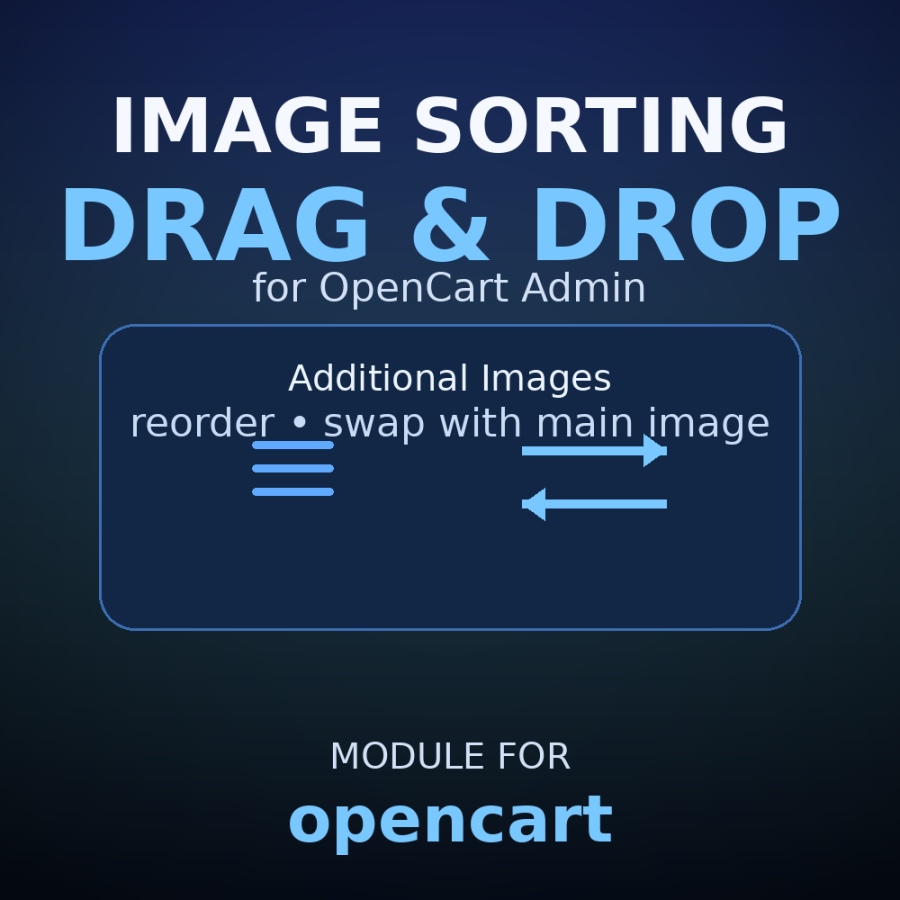


Drag and drop additional image sorting for OpenCart
Product Code: 571
Version: 3.0
In Stock
FREE
Main specifications
PHP:
7.2-7.4
Compatibility:
OpenCart 3, ocStore 3
Localization:
Ukrainian, Russian, English
Ocmod:
Yes
Adaptation to your store:
Paid
All specifications
Description
Sort additional images by dragging and dropping
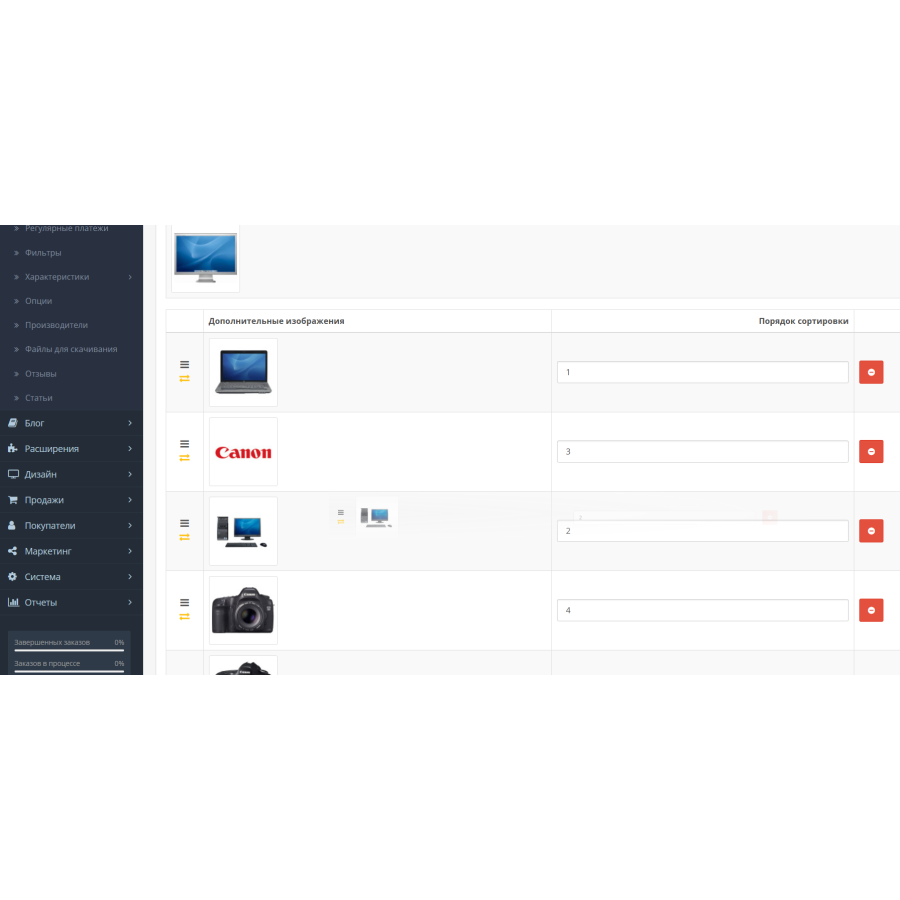
This modifier adds convenient product image management to the OpenCart admin panel: you can drag and drop additional photos to change the order, as well as swap the additional image with the main one.
Main functions
- Drag & Drop sorting - change the order of images by simply dragging and dropping.
- Swap with main photo — quickly make an additional image the main one (and vice versa).
- Auto-update sorting — sort order values are recalculated automatically.
- Visual effects - lighting and smooth animations when dragging.
Installation
- Install the modifier through the admin panel (Extension Installer).
- Refresh/clear the modification cache in the Modifiers section (Refresh).
Using
- Open product editing: Catalog → Products → Edit .
- Go to the Images tab.
- To change the order, drag the images by the ☰ icon.
- To exchange an additional image with the main one, click the ⇄ icon.
Notes
- The manual sort order entry field is hidden because sorting is done by drag-and-drop.
- Sort values are updated automatically as you move items.
- This requires jQuery UI (Sortable) to work.
-
error="skip"attribute is used, so the modifier often works even after template changes. - A newly added image automatically receives a sequential number at the end of the list.
How it works
The modifier makes changes to the product editing template: adds service IDs for access via JavaScript, adds a column with drag and drop and swap icons, hides the manual sort order field, connects scripts and styles. Drag and drop is implemented via jQuery UI Sortable , and swap is performed by JavaScript logic (replacing values and image sources between the main and secondary ones).
Specifications
Characteristics
PHP
7.2-7.4
Compatibility
OpenCart 3, ocStore 3
Localization
Ukrainian, Russian, English
Ocmod
Yes
Adaptation to your store
Paid
Download
 sort_product_images_with_swap.ocmod.zip
There are no reviews for this product, be the first to leave your review.
No questions about this product, be the first and ask your question.
Installing the module
Module installation instructions:
- Before performing any actions related to installing an add-on in Opencart, we recommend creating a backup copy of all site files and the store database ;
- Install the localcopy fix (if you don't have it installed yet)
- Download the module file for the desired Opencart version from our website ( Follow the installation instructions if there are any in the module archive );
- Then go to the "Installing add-ons/extensions" section and click on the " Download " button;
- Select the downloaded file and wait for the module to be fully installed and for the text "Application installed successfully" to appear;
- After that, go to " Application Manager " and update the modifiers by clicking the " Update " button;
- After these actions, you need to add the rights to view and manage the module in the " User Groups " section for the administrator or other users you select by clicking " Select All ".