FlareGuard: DDoS protection and anti-bot for an online store on OpenCart 3
The FlareGuard module provides reliable protection for online stores on OpenCart 3 against DDoS attacks and malicious bots. It analyzes incoming traffic in real time, detecting suspicious activity and instantly blocking dangerous requests. This reduces the load on the server and helps maintain stable site operation even during attacks.
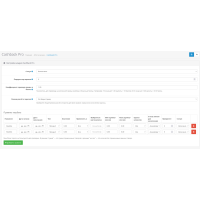
You can set an individual request limit for each IP, enable a special "Under Attack" mode with mandatory captcha verification for everyone not on the whitelist. The module supports Cloudflare Turnstile, HTTP flood protection, and provides convenient tools for managing IP address lists and event logs.
Main features:
Customizable DDoS protection with request rate limiting
"Under Attack" mode with mandatory verification for unknown visitors
Cloudflare Turnstile support for bot protection
Automatic IP blocking when a specified threshold is exceeded
Convenient management of IP white and black lists
Maintaining logs to analyze suspicious activity
Adaptive protection that enhances checks under abnormal load
Effective protection against HTTP flood
Blocking sudden traffic spikes - 50+ requests in 10 seconds
Important: FlareGuard is part of a comprehensive cybersecurity strategy. For maximum effectiveness, it is recommended to additionally configure server security and restrict access to unused ports.
Installing the module:
Go to the "Installing Add-ons/Extensions" section and click the "Download" button.
Select the module archive and wait for the installation confirmation.
Go to "Application Manager" and click "Update".
Interface languages: Ukrainian and English
Cloudflare Turnstile Settings:
Log in to your Cloudflare account and select the desired site.
Go to the Turnstile section and click "Add widget".
Specify the site name and domain, select the operating mode.
If necessary, enable the pre-clearance option.
Copy the generated keys (sitekey and secret key).
⚠️ It is recommended to create a backup copy of the
index.phpfile before making any changes.
There are no reviews for this product, be the first to leave your review.
No questions about this product, be the first and ask your question.
Module installation instructions:
- Before performing any actions related to installing an add-on in Opencart, we recommend creating a backup copy of all site files and the store database ;
- Install the localcopy fix (if you don't have it installed yet)
- Download the module file for the desired Opencart version from our website ( Follow the installation instructions if there are any in the module archive );
- Then go to the "Installing add-ons/extensions" section and click on the " Download " button;
- Select the downloaded file and wait for the module to be fully installed and for the text "Application installed successfully" to appear;
- After that, go to " Application Manager " and update the modifiers by clicking the " Update " button;
- After these actions, you need to add the rights to view and manage the module in the " User Groups " section for the administrator or other users you select by clicking " Select All ".