


Uni tools module - Usability tools for Opencart
As you know, recently search engines prefer those sites and online stores that have high indicators of behavioral factors.
How to influence the factors of store behavior on Openkart?
You can have a significant impact on the behavioral factors of your store in such a simple way as improving the usability of your store website, that is, making your store more convenient, simple and understandable for customers, so that the customer can immediately find the desired product, add this product to the cart and place a purchase order , ask questions to the manager, get information about delivery and payment, and so on.
Usability Tools for OpenMaps 3 module will help you solve most of these questions
Features of the module Usability tools for Openkart 3
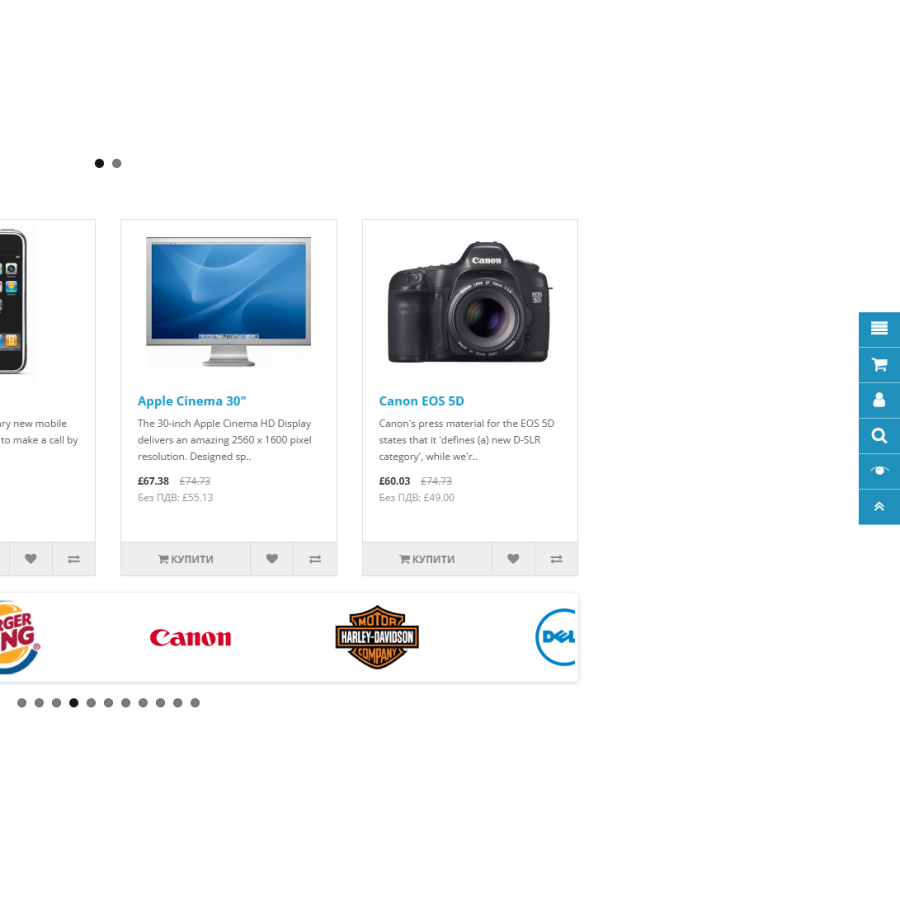
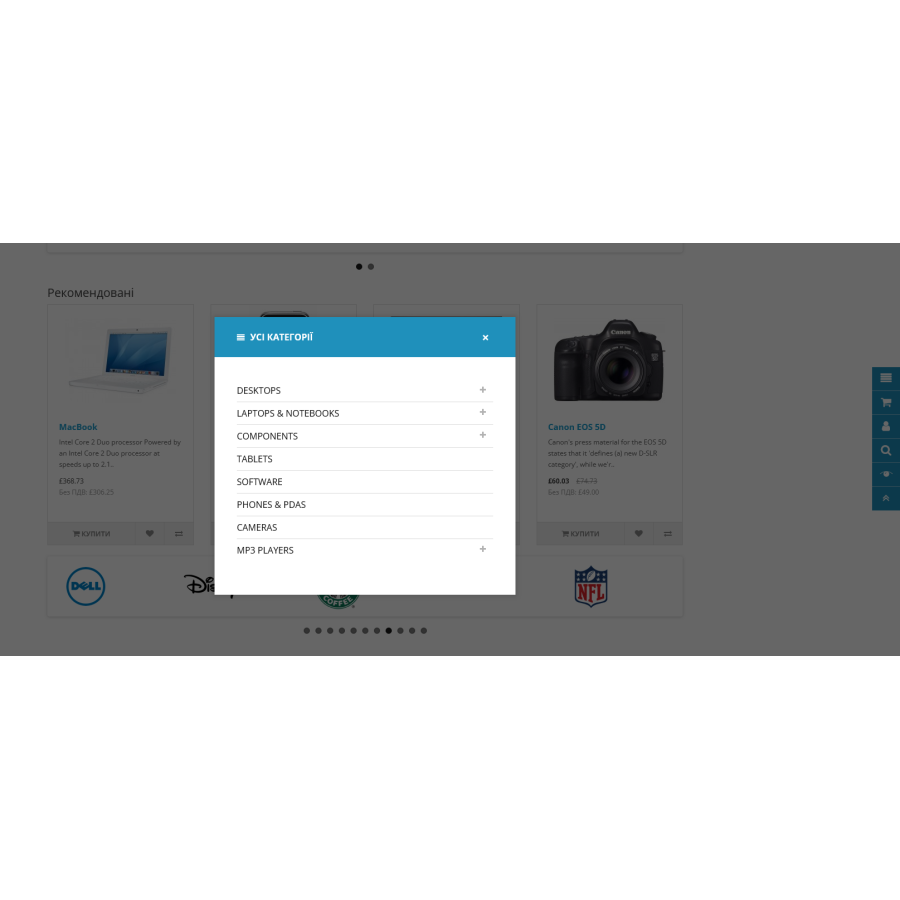
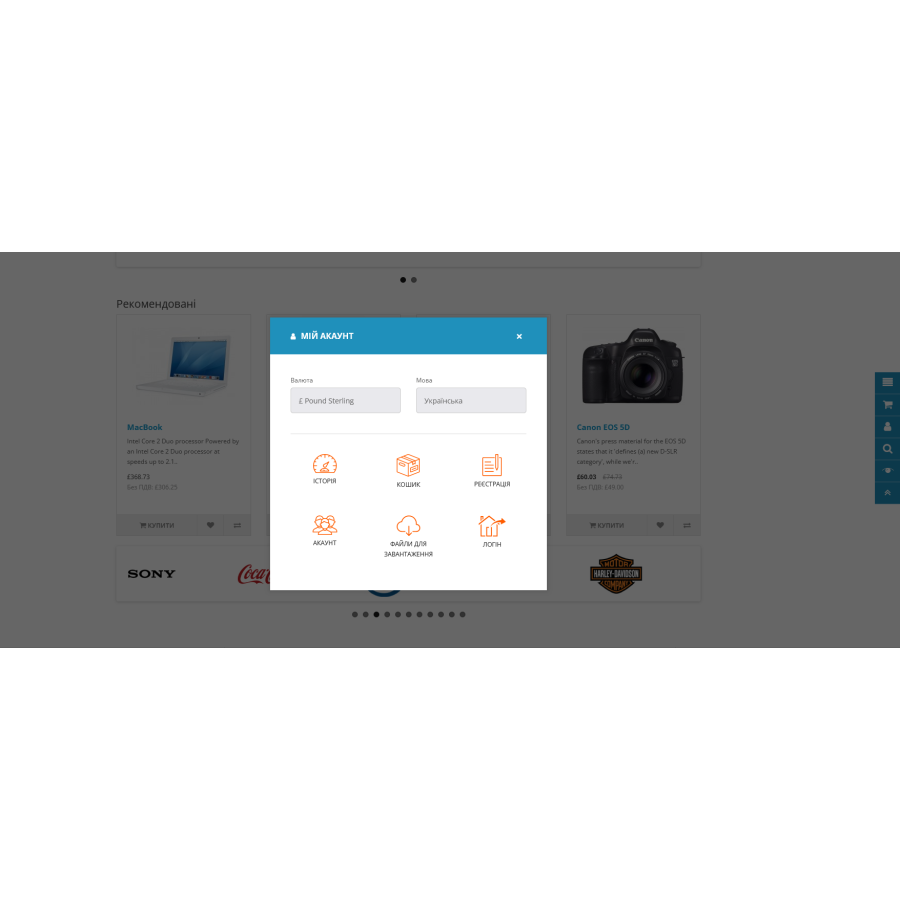
The module creates a floating sidebar that makes it very easy for your customers to find the right product in your store.
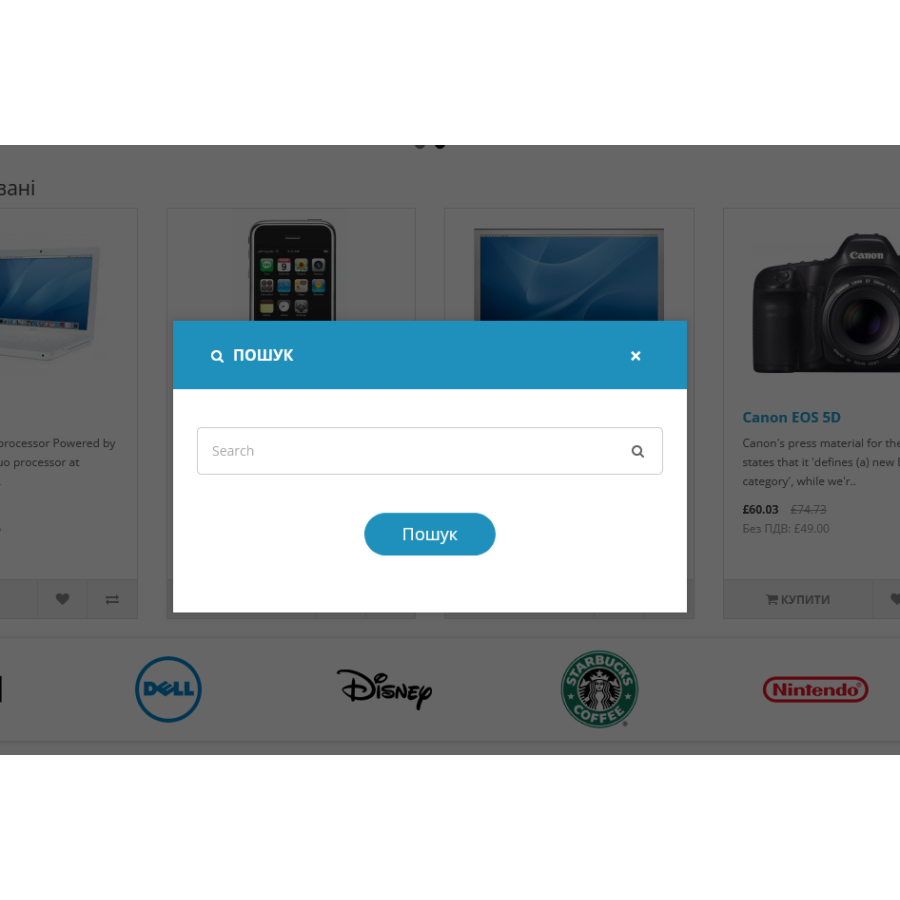
The Uni tools module for Opencart 3x creates the following tools:
- 1 Quick selection of the desired product category
- 2 Quick call to the product search bar
- 3 Quick transition to the shopping cart
- 4 Browsing and returning to previously viewed products
- 5 Registration, authorization and login to the site, as well as navigation of the user's personal account.
- 6 Page scroll button up.
How to install the Usability module for Openkart 3.0?
- 1 Download the module through the application installer
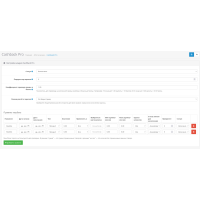
- 2 Add administrator rights to manage the module
- 3 Enable the module on the Manage Modules page
- 4 Add the module to the schematics
- 5 Refresh the modification cache
The module was tested on default templates
 uni-tools-oc3.ocmod.zip
There are no reviews for this product, be the first to leave your review.
No questions about this product, be the first and ask your question.
Module installation instructions:
- Before performing any actions related to installing an add-on in Opencart, we recommend creating a backup copy of all site files and the store database ;
- Install the localcopy fix (if you don't have it installed yet)
- Download the module file for the desired Opencart version from our website ( Follow the installation instructions if there are any in the module archive );
- Then go to the "Installing add-ons/extensions" section and click on the " Download " button;
- Select the downloaded file and wait for the module to be fully installed and for the text "Application installed successfully" to appear;
- After that, go to " Application Manager " and update the modifiers by clicking the " Update " button;
- After these actions, you need to add the rights to view and manage the module in the " User Groups " section for the administrator or other users you select by clicking " Select All ".